.svg)
07_01_02_Headset Startup & Initial Setup
1. Powering On the Headset
1.1 Prepare the Controllers:
Place the controllers within easy reach.
1. 2 Power On:
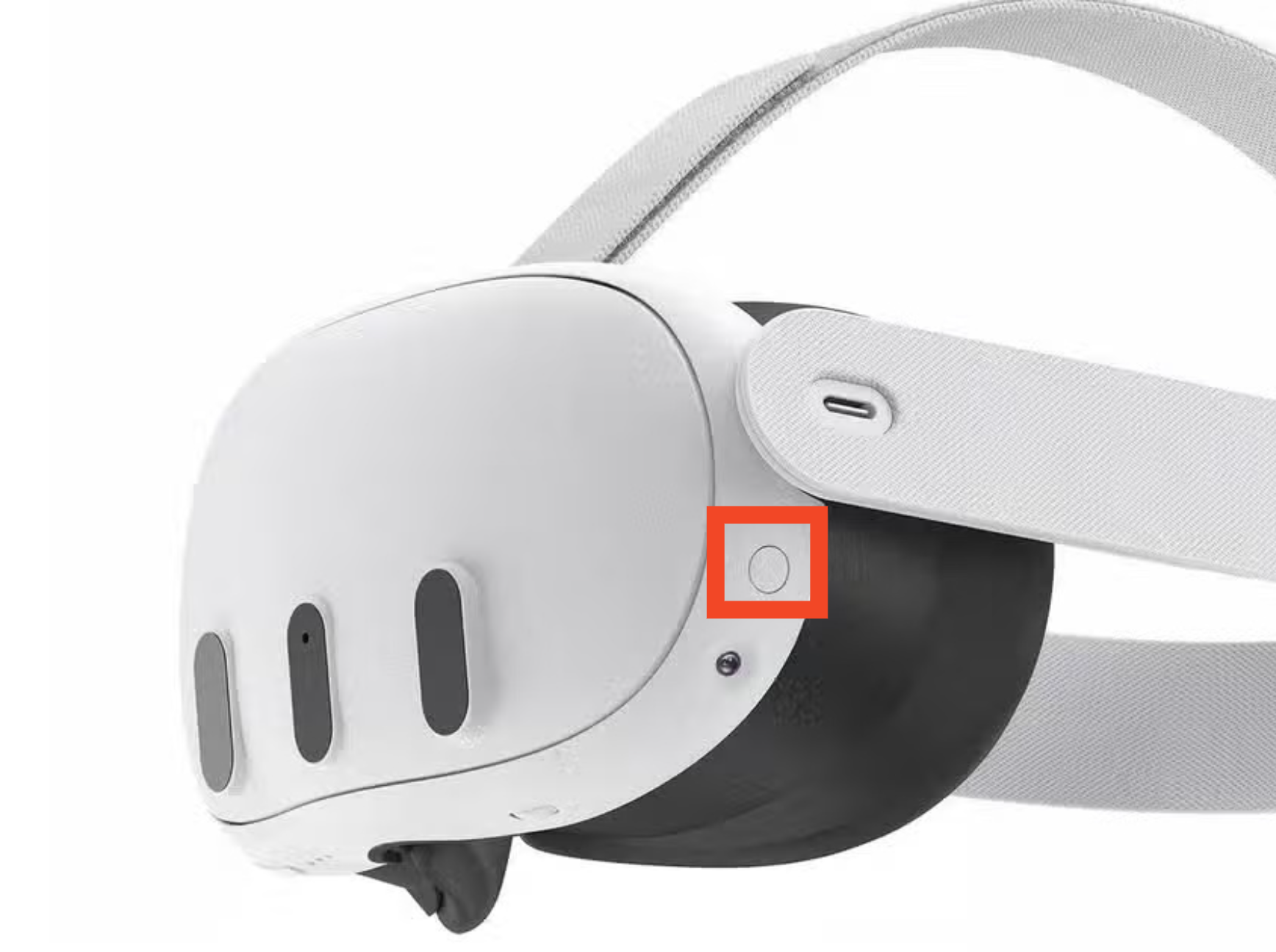
Press and hold the button on the left side until the light illuminates and the Meta logo appears on the displays.
1.3 Wear the Headset:
Put on the headset and pick up the controllers.
1.4 Main Menu Appearance:
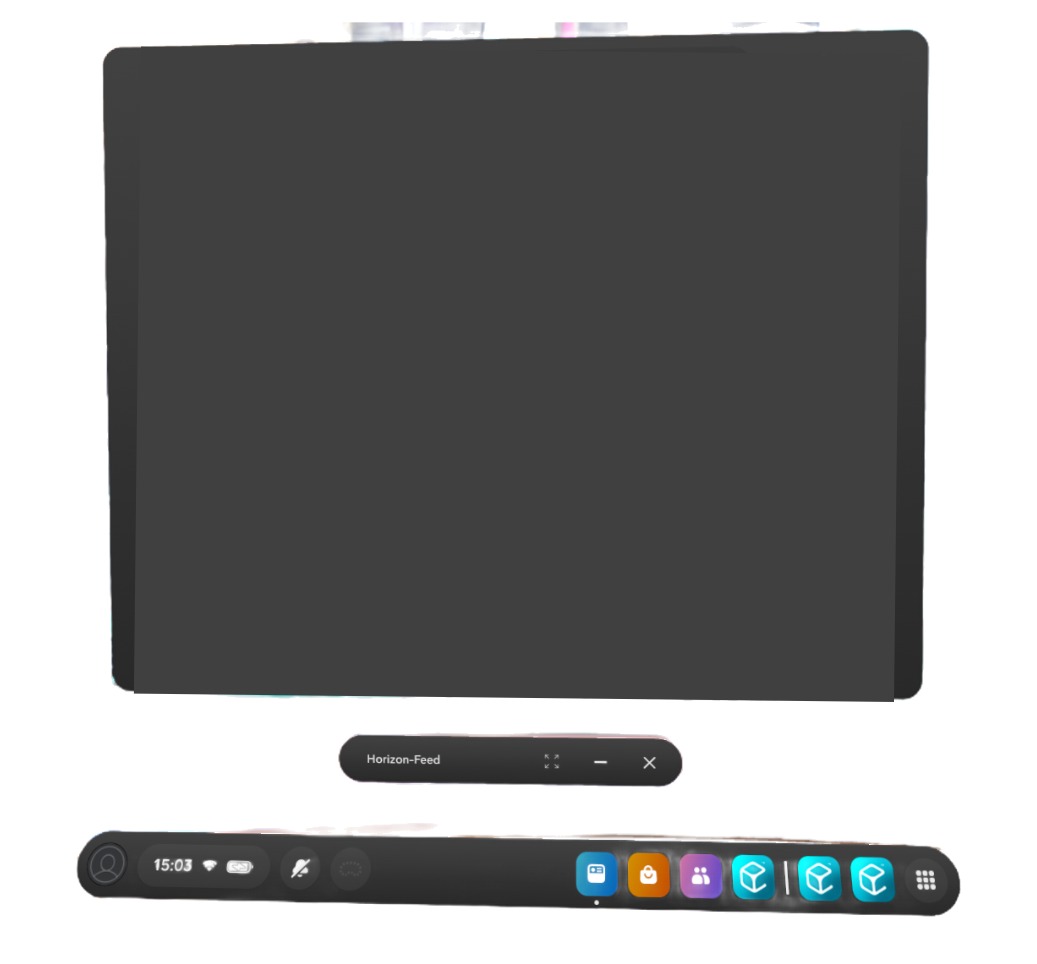
After powering on, the main menu appears. From here, you can manage Wi-Fi settings and launch applications.

If you are already inside an application, press the Meta button on the controller to return to the main menu.
2. Launch Interstuhl Application Center
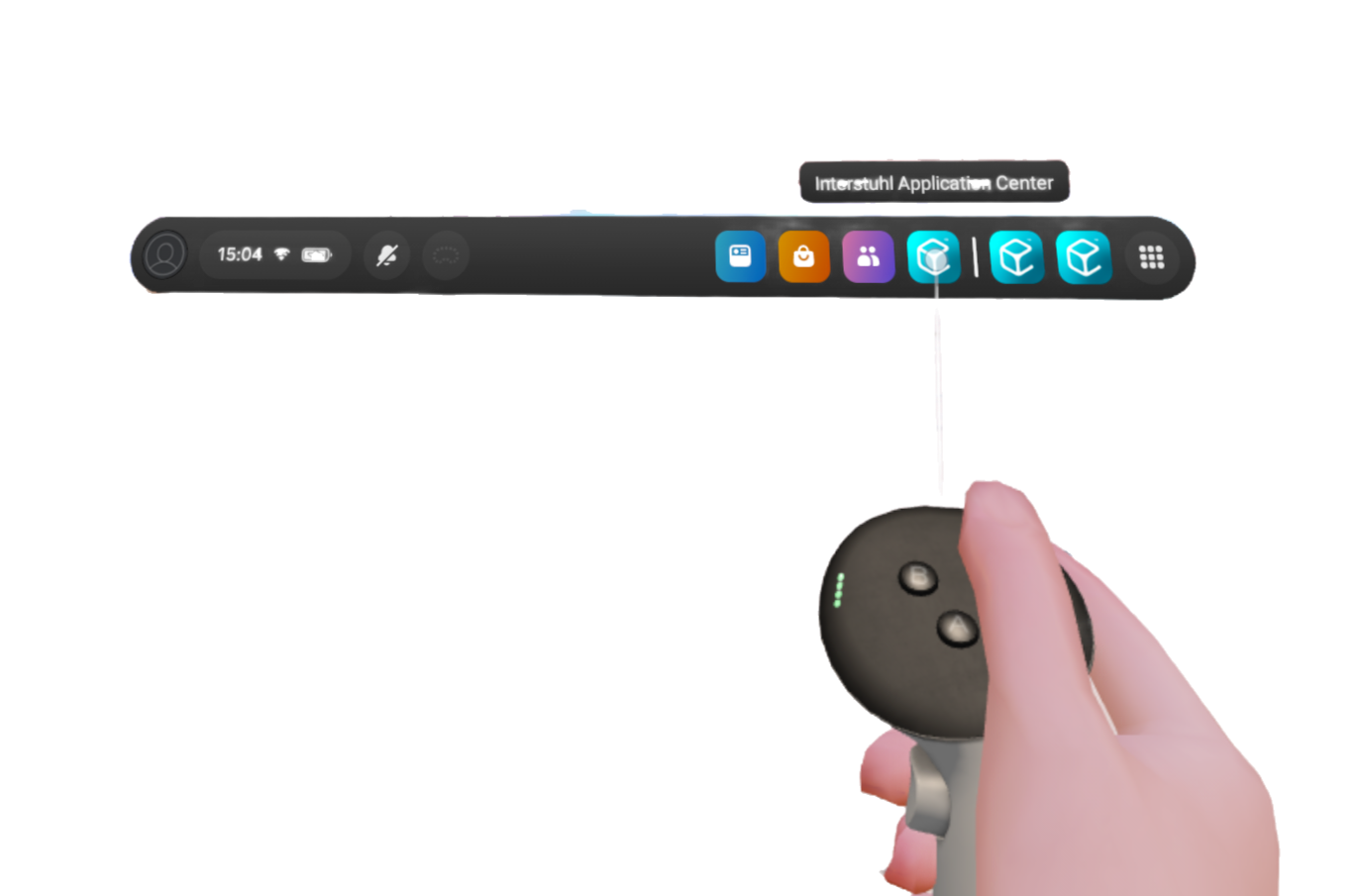
After powering on, the main menu appears. Here, you can launch the Interstuhl Application Center using your controller.
If the application is not visible in the menu bar, please navigate to the app library and select the “For Work” section.
For operation the Interstuhl Application Center please refer to:
07_02_Operating the Interstuhl Application Center
3. Connecting to Wi-Fi
3.1 Access Wi-Fi Settings:
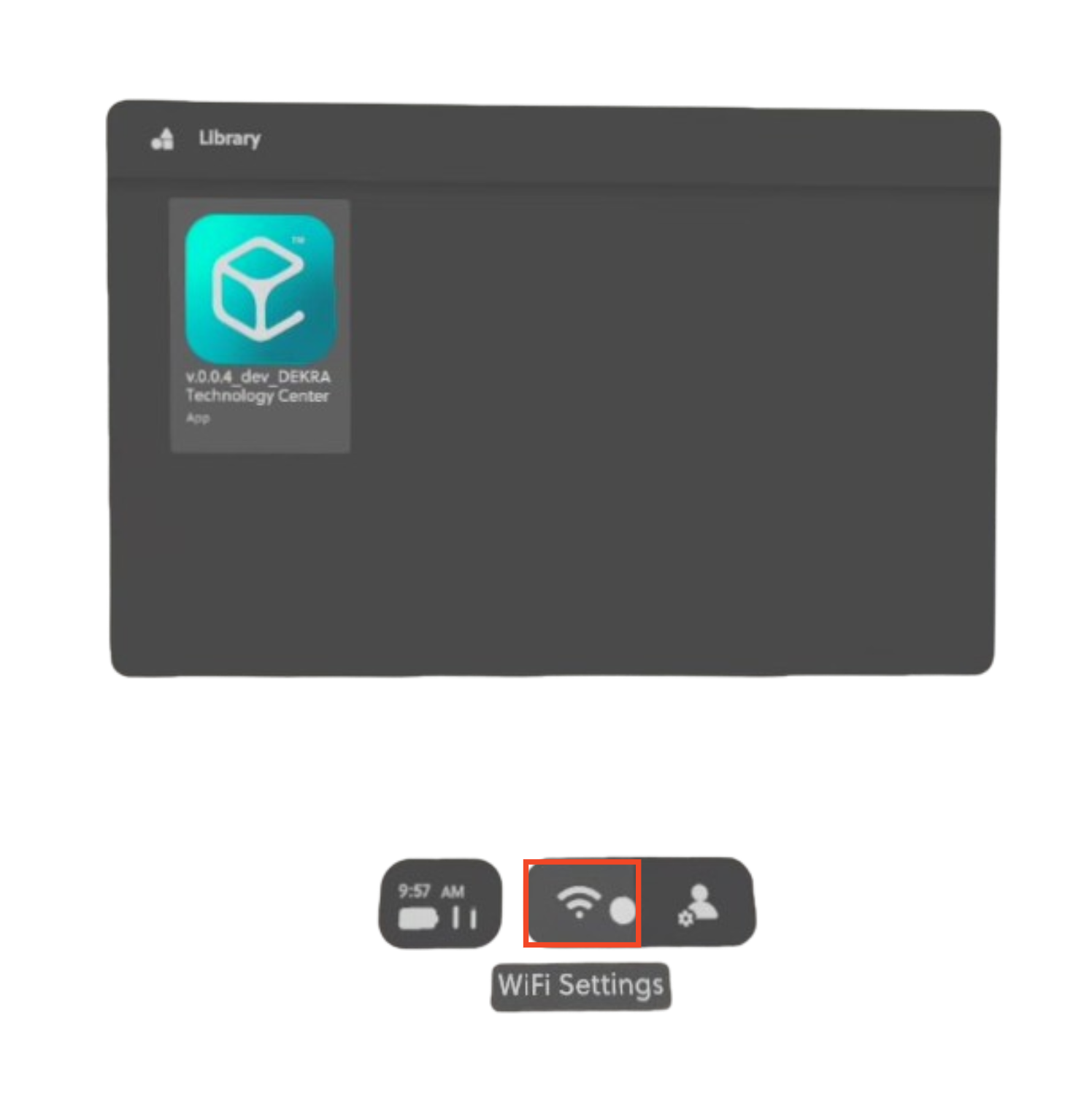
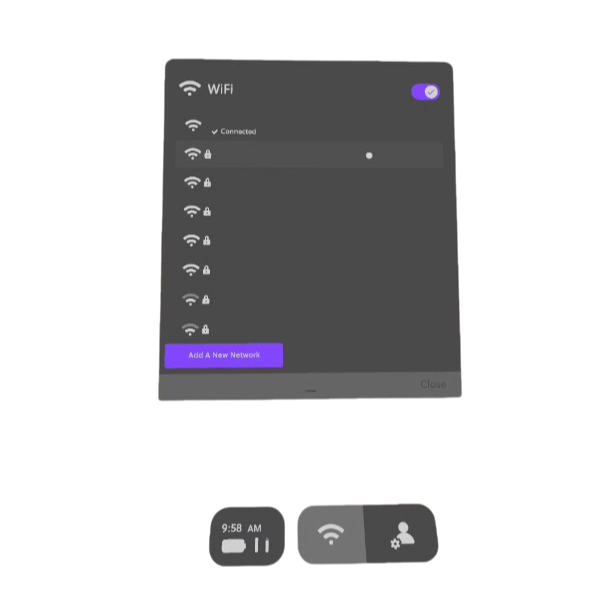
From the main menu, select the "WiFi Settings" button.
3.2 Select Network:
Choose the network you wish to connect to.
3.3 Enter Password:
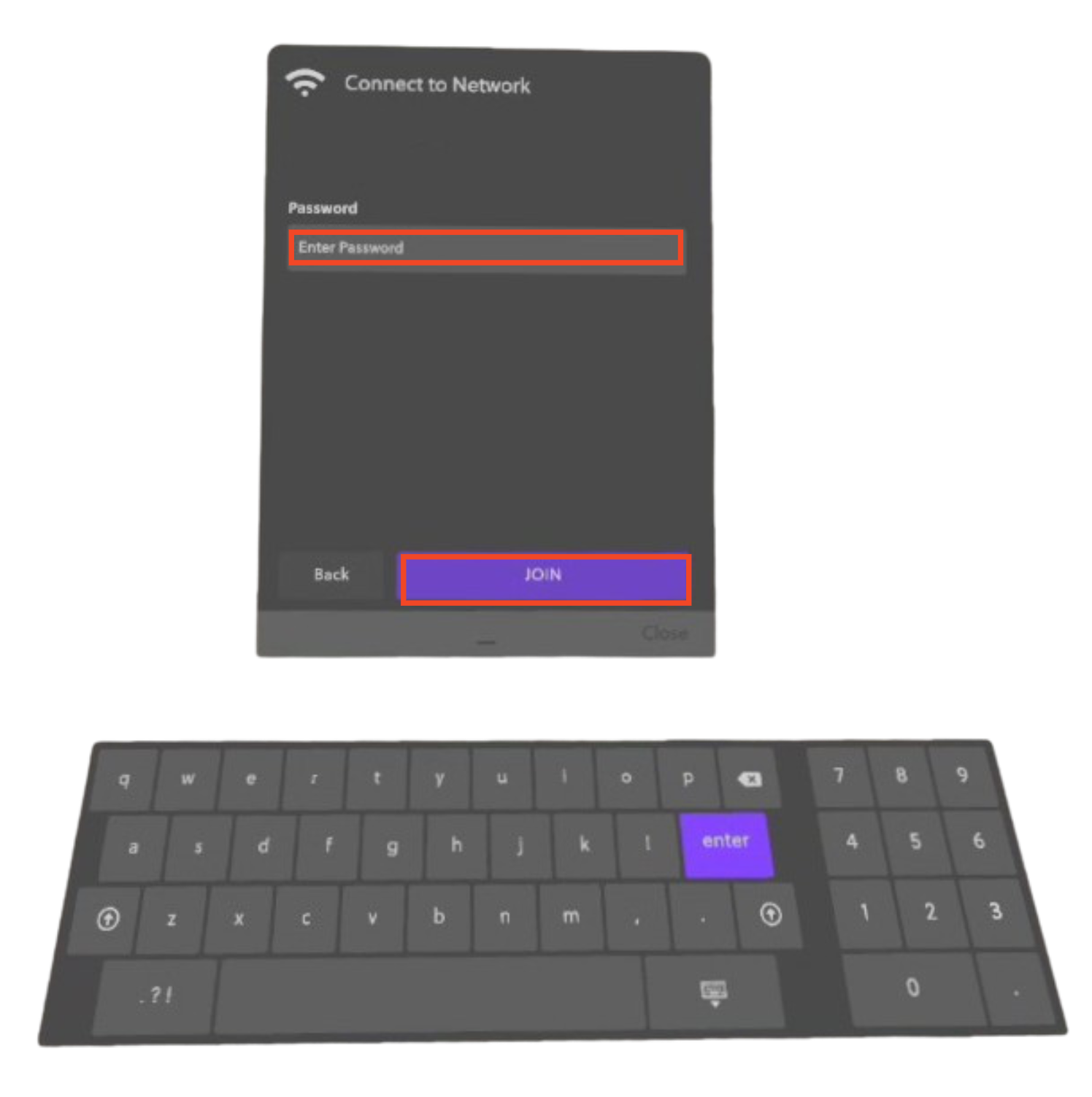
Select "Enter Password" to display the on-screen keyboard, then input the network password and press "Join."
3.4 Exit Wi-Fi Settings:
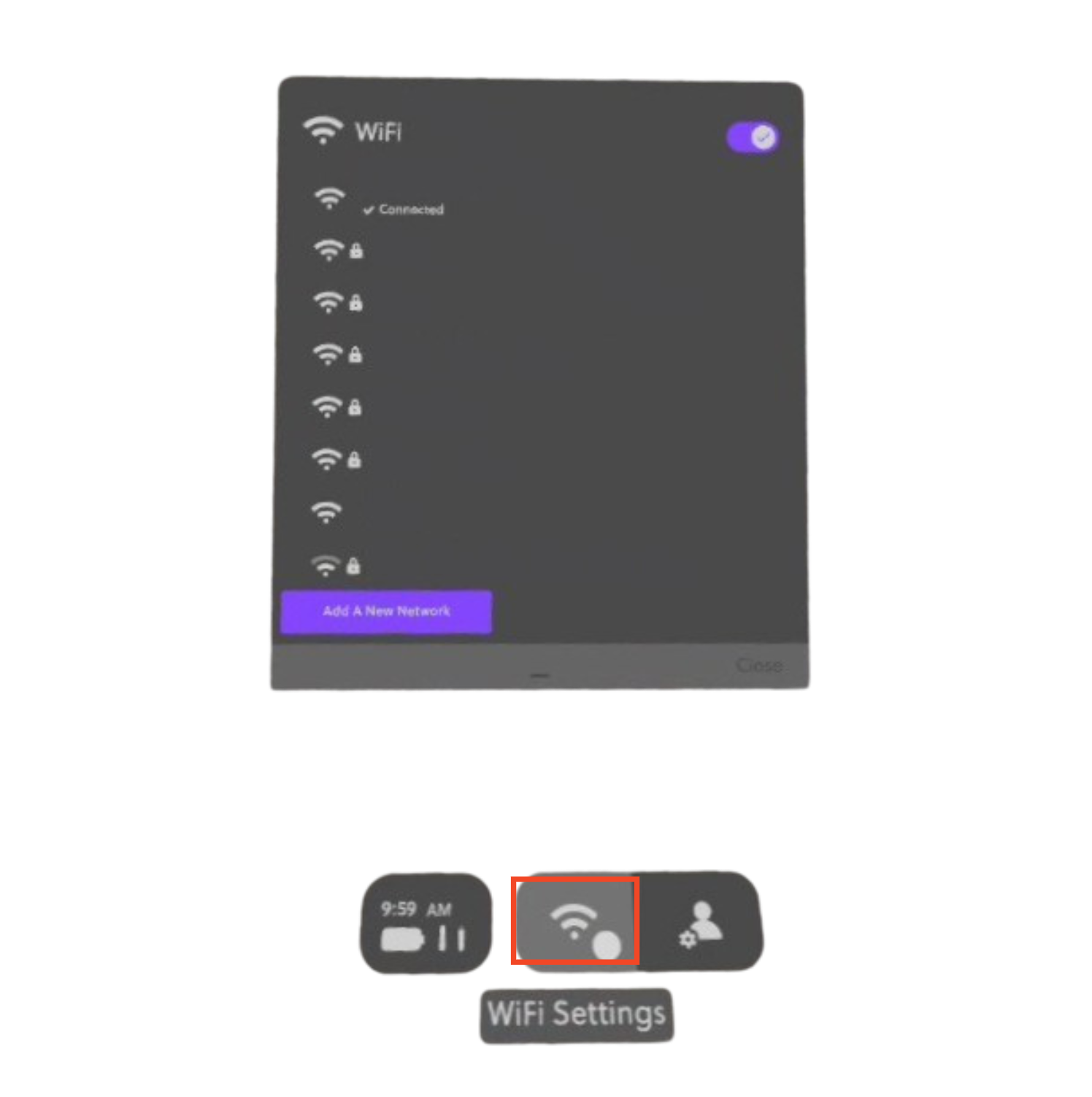
To leave the Wi-Fi settings, press the "WiFi Settings" button again.
4. Turning Off the Headset
Power Off:
When the headset is not in use or for transport, turn it off by pressing and holding the left-side button for at least three seconds. A menu will appear on the displays, allowing you to power off the headset.
If the "Power Off" option is not visible, select "Battery Options" and then choose "Power Off."
If no controllers are available, the volume buttons can be used as an alternative method for navigating and making selections.