.svg)
07_02_Operating the Interstuhl Application Center
1. Starting the Application Center
Launching the Application Center:
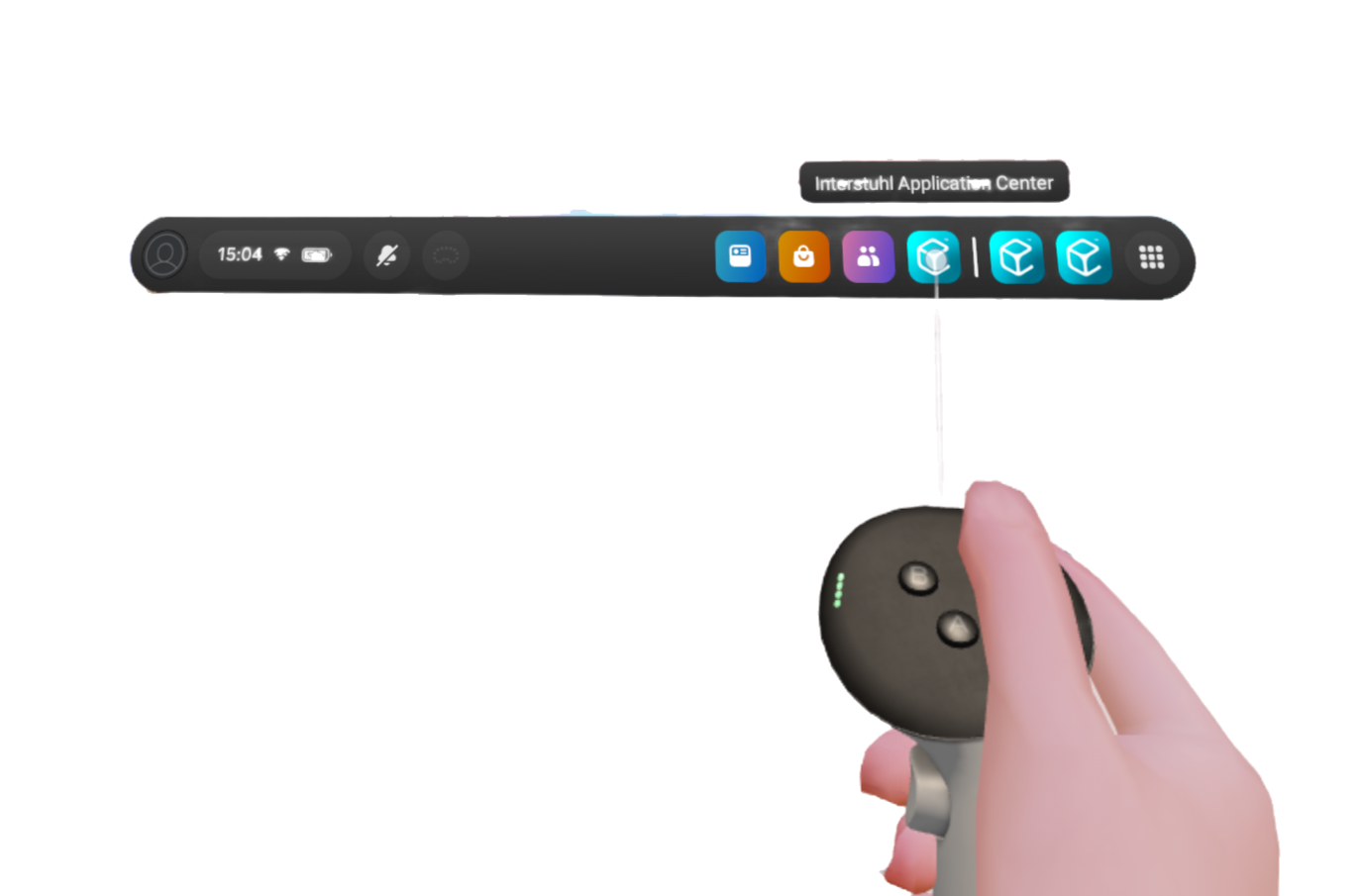
Once the headset is on, the Interstuhl Application Center can be launched via the Menu Bar.
(refer to section 07_01_02_Headset Startup & Initial Setup )

After starting the Interstuhl Application Center the controller should be stowed aside.
From this point onward, all interactions are performed using the gaze cursor.
2. Navigating the Application Center
Main Menu Overview:
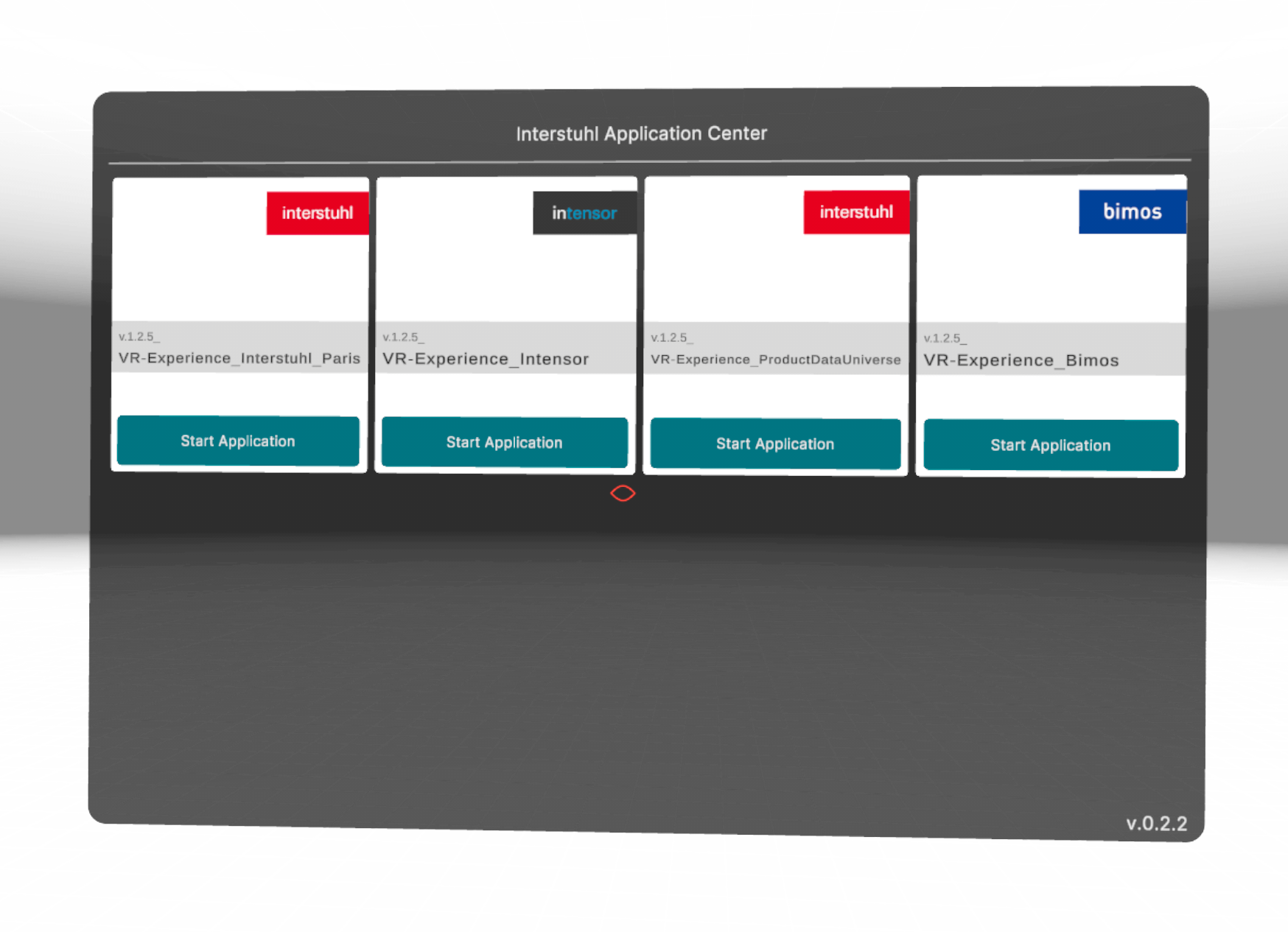
The Application Center displays all available VR experiences
Selecting an Experience:
Use the gaze cursor to highlight and select the desired VR application from the Application Center.
Once selected, the application starts automatically.
The chosen experience is then activated and runs continuously (in a “loop mode”) for visitors.
3. Visitor Interaction During a Session
Automatic Operation:
The VR application runs in a continuous loop.
When a visitor is ready, the headset is placed on, and the experience begins automatically.
Two Possible End Scenarios:
Mid-Session Removal:
If the headset is removed during an ongoing application (before the application reaches its natural end), the system waits approximately 30 seconds before automatically restarting the selected experience.
Completion of the Experience:
If the visitor stays through the entire session, upon removing the VR-Headset, the Application restarts immediately and is ready for the next visitor
Recalibration Note:
If any issues occur or the alignment of the application is not correct, remove the headset briefly and then put it back on. This process recalibrates the system.
4. Returning to the Interstuhl Application Center
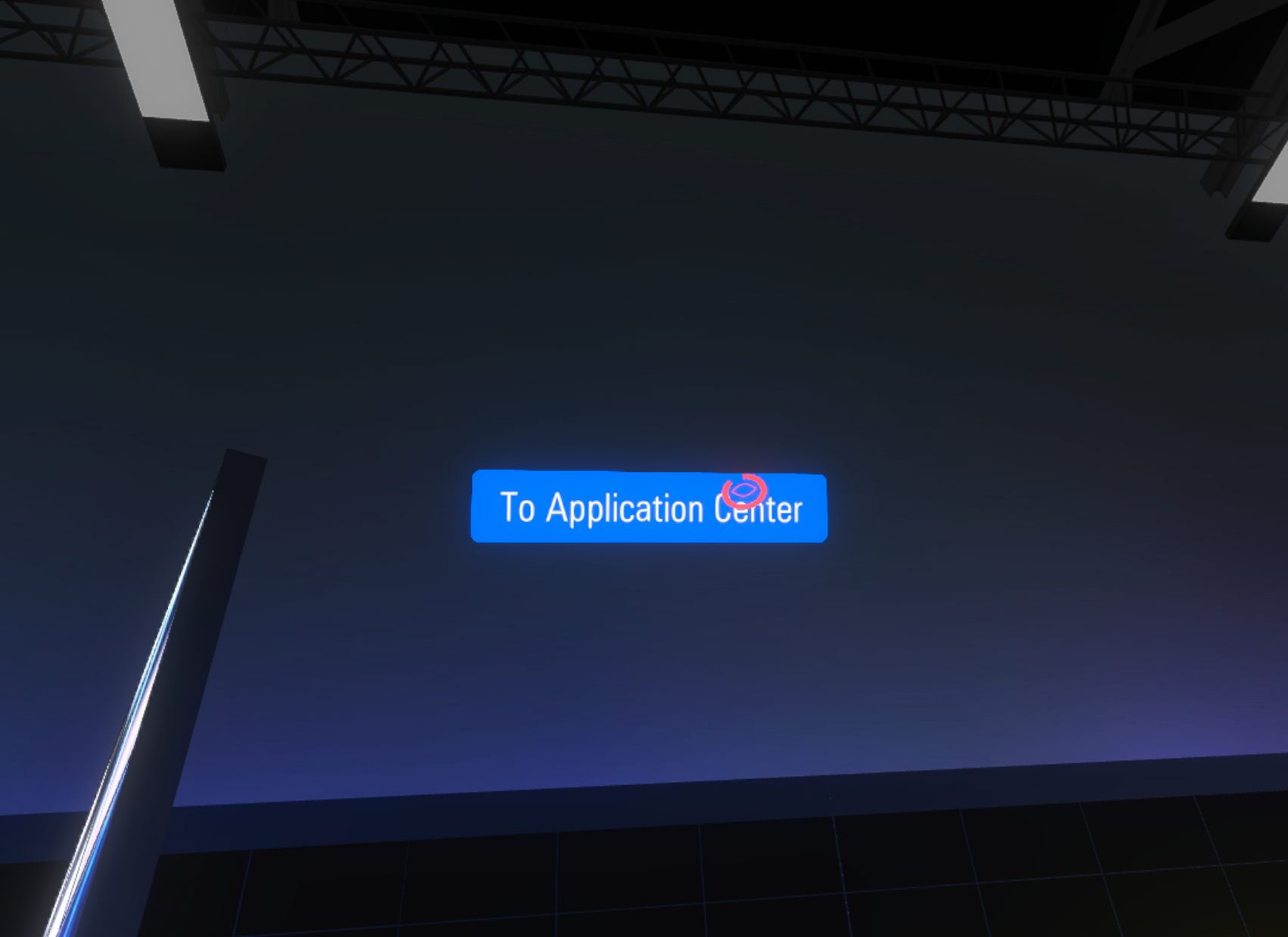
To return to the Application Center, look upward toward the top left of the virtual world for about 5 seconds.
A “Back to Application Center” button will appear.
Selecting this button with the gaze cursor
exits the current application and returns to the Application Center, allowing you to choose a different experience if needed.